


Engineering
Git Worktree: Work on Two Branches at Once Without Stashing
Git worktree gives each branch its own folder, so you can fix a bug or review a pull request without touching the work you have not finished.
Author
Bytelify Team
Published
Reading time
7 min
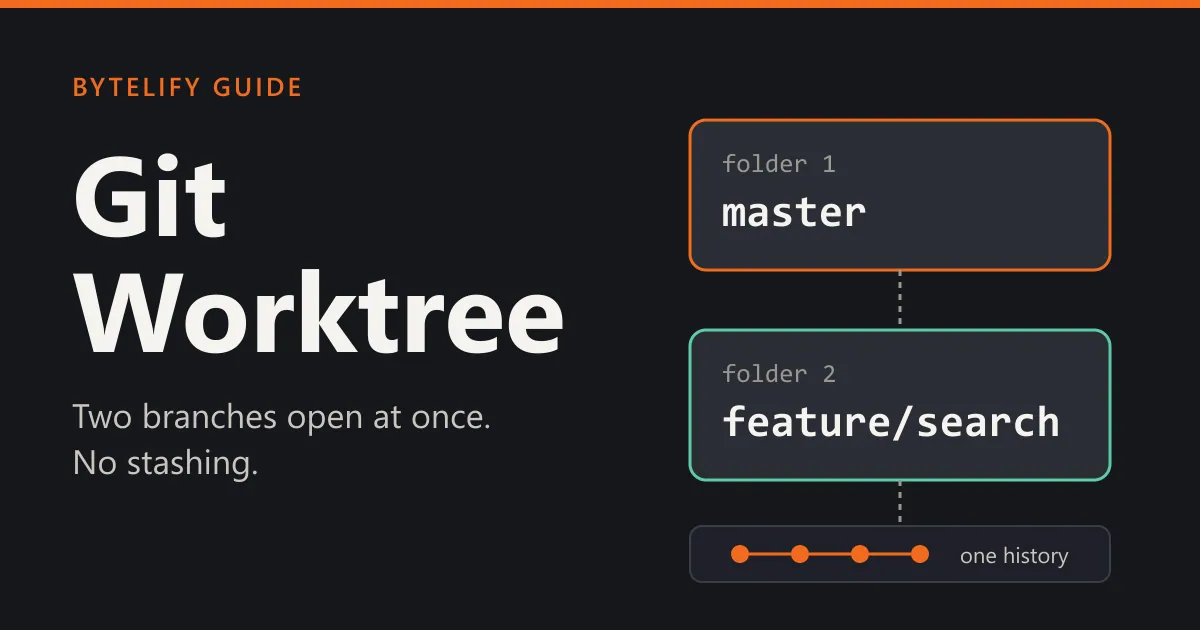
Git worktree is a built-in way to have two branches open in two folders at the same time. You start a fix in one folder while your unfinished feature stays untouched in the other. No stashing, no half-made commits, no second clone. This guide explains how git worktrees work and shows a simple example you can copy.
The short version
git worktree add ../fix-login fix-loginopens the branchfix-loginin a new folder.- Work, commit and push there as normal. Your first folder does not change.
git worktree remove ../fix-logincleans up when you are done.
Words You Need First
- Repository: the project plus its full history, stored in the hidden
.gitfolder. - Branch: a movable label that points to a commit. It is how you keep one line of work apart from another.
- Working tree: the actual files you see and edit in a folder. Normally a repository has exactly one.
- Stash: a shelf where git parks your unfinished changes so you can switch branches.
- HEAD: the commit or branch you currently have checked out.
What Is a Git Worktree?
Normally one repository means one folder, and that folder shows one branch at a time. To look at another branch, git rewrites every file in the folder to match it. If you have unfinished changes, git will often refuse to switch.
A git worktree removes that limit. It adds a second folder, called a linked worktree, that is connected to the same repository. Each folder has its own branch and its own files. All of them share the same history, so there is nothing to download again and almost no extra disk space is used.
Think of one library with two reading desks. The books (the history) are the same. Each desk (the worktree) holds a different open page.
The Problem It Solves
You are halfway through a feature. A teammate asks you to look at a bug on main right now. You have three bad choices:
- Commit unfinished work just to switch branches, and clean up the commit later.
- Stash it and hope you remember to bring it back, in the right order.
- Clone the repository again into a second folder, which copies the whole history and needs its own remotes.
With a worktree you open the bug branch in a new folder, fix it, and walk back to your feature folder exactly as you left it.
How to Use Git Worktree: Step-by-Step Tutorial
1. Add a worktree for an existing branch
git worktree add ../hotfix-login hotfix-loginHere is the first example. This creates the folder ../hotfix-login with the branch hotfix-login checked out. The path goes first, the branch name second.
2. Add a worktree with a new branch
git worktree add -b feature/search ../search origin/mainThe -b flag makes a new branch called feature/search, starting from origin/main, and opens it in ../search.
3. See what you have
git worktree listYou get one line per worktree: its folder, the commit it is on, and the branch.
4. Work as normal
Open the new folder in your editor or terminal. git status, git commit and git push all work as usual, and only affect that folder’s branch.
5. Remove it when you are done
git worktree remove ../hotfix-loginGit removes the folder and forgets it. If the folder has uncommitted changes, git stops and asks you to deal with them first.
Commands at a Glance
| Command | What it does |
|---|---|
git worktree add <path> <branch> |
Open an existing branch in a new folder |
git worktree add -b <new> <path> <start> |
Create a new branch and open it |
git worktree list |
Show all worktrees |
git worktree remove <path> |
Delete a worktree cleanly |
git worktree prune |
Clean up entries for folders that no longer exist |
git worktree add --detach <path> <commit> |
Look at a commit without making a branch |
Git Worktree vs Branch, Stash and Clone
A worktree does not replace a branch. A branch is a line of work, and a worktree is a folder where one branch is open. You still use branches as before. A worktree just lets two of them be open at once.
| Worktree | Stash | Second clone | |
|---|---|---|---|
| Keep unfinished work where it is | Yes | No, it is parked | Yes |
| Disk space | Small | None | Full copy of history |
| Needs to download again | No | No | Yes |
| Easy to forget | Listed by git worktree list |
Easy to forget | Easy to forget |
A stash is still fine for a quick, short switch. A worktree is better when the other task will take more than a few minutes, or when you want to run both at the same time.
When It Is Worth Using
- Urgent bug fix while your feature is unfinished.
- Reviewing a pull request by running its code without disturbing your own branch.
- Comparing two versions side by side, such as old and new behavior.
- Long builds or test runs on one branch while you keep working on another.
- Several AI coding agents working on separate tasks at once. Each agent gets its own folder, so they cannot overwrite each other’s files. Tools such as Claude Code can create a worktree for this.
Git Worktree With Claude Code and Other AI Agents
AI coding agents work best when each task has its own copy of the files. A worktree gives an agent that copy without a second clone. Claude Code, for example, can start a session in its own worktree, so two agents never edit the same files. When the work is merged, remove the worktree with git worktree remove, as shown above.
Git Worktree Not Working? Common Errors
1. The branch is already checked out
Git will not open the same branch in two folders. If you see an error saying the branch is already checked out or in use, run git worktree list to find where. Either use that folder, or create a new branch from it with -b.
2. The folder already exists
git worktree add needs a path that does not exist, or that is an empty folder. Pick a new path.
3. The branch does not exist
If the branch name is wrong, git cannot find it. Check it with git branch --all, or create it with -b.
4. A deleted folder still shows in the list
If you deleted the folder by hand, git still remembers it. Run git worktree prune to clear the stale entry.
5. The project will not run in the new folder
A new worktree only has files that are tracked by git. Things git ignores, such as node_modules, .env files and build output, are not copied. Install dependencies and recreate your env files in the new folder.
Good Habits
- Keep worktrees outside the repository folder (for example
../fix-login), so you never commit them by accident. If you must keep them inside, add that folder to.gitignore. - Name the folder after the branch or task. You will thank yourself when you have three open.
- Remove them when the work is merged. Old worktrees pile up and still hold their branch.
- Remember the stash is shared. Stashes belong to the repository, not to a folder. A stash made in one worktree shows up in all of them.
- Do not edit the same files in two worktrees on branches that will merge. It works, but you will resolve the conflict later.
Note: this guide is Bytelify’s own write-up, based on the commands in the official git documentation (
git help worktree). Exact error wording changes between git versions, so checkgit --versionand the official docs if a message looks different.
Key Takeaways
A worktree is a second folder for the same repository.
Each worktree has its own branch and its own files, but all of them share one history. You do not clone anything again.
It replaces most uses of git stash.
You no longer have to hide half-done work to switch branches. You leave it where it is and open the other branch in a new folder.
One branch can only live in one worktree.
Git refuses to check out the same branch in two folders. This is a safety rule, and it is the most common error people hit.
Ignored files are not shared.
A new worktree has no node_modules, .env or build output. Install and set these up again in each folder.
Remove a worktree with git, not with the file explorer.
Use git worktree remove so git also forgets the folder. Deleting the folder by hand leaves a stale entry behind.